Tutorial
This tutorial illustrates how
you can install and use the iNetGrow software to connect to a controller at the
iNetGrow site.
Installation
Download the iNetGrow
software installation file. This
is an executable file. Your
browser may ask you whether you want to run this file from the site or to save
it on to a local disk. If you
choose to save it locally, double click on it to run it.
Once run, Setup_iNetGrow.exe
will instruct you through the installation process. The installation process places shortcuts in the menu or on
the desktop.
Running the Program
Start the iNetGrow software in
Windows either by double clicking on one of the icons or by selecting it from
the programs menu.
Specifying Controller
The first time you run the
iNetGrow software, you will be asked to add controllers to the list.
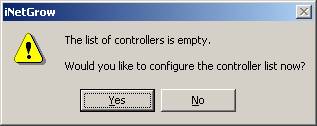
If you have a controller on your
Local Area Network (LAN), then
specify its IP address. In this
tutorial, we will connect to a controller at the iNetGrow site. Click the “Yes” button. This invokes the “Setup Wizard” as
shown below.
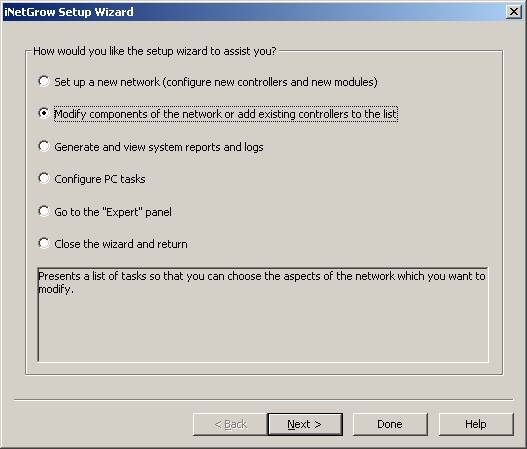
The first option (Set up a new
network) allows you to configure all components of a system from the
beginning. Since we are connecting
to an existing controller that has already been configured, select the second
option (Modify components of the network or add existing controllers to the
list). Click the “Next” button. You are presented with the controller
list, which is currently empty.
Select the first option (Add a new controller) and click the “Next”
button.
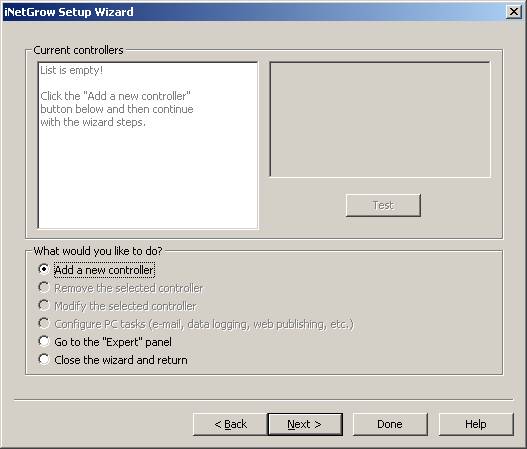
There are several ways to add
controllers to the list. You may
click the “Help” button to read more about these options. In this tutorial, we specify the
controller by its URL and port number.
Type in the URL as “inetgrow.dyndns.org” and the port number as “8451.” Note that there is a colon (‘:’)
between the URL and the port number, as shown below.
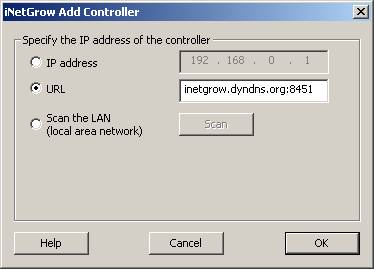
Click the “OK” button to close
this dialog. You may test the
connection by clicking on the “Test” button. This retrieves information about the controller and displays
it in the dialog, next to the list of controllers.
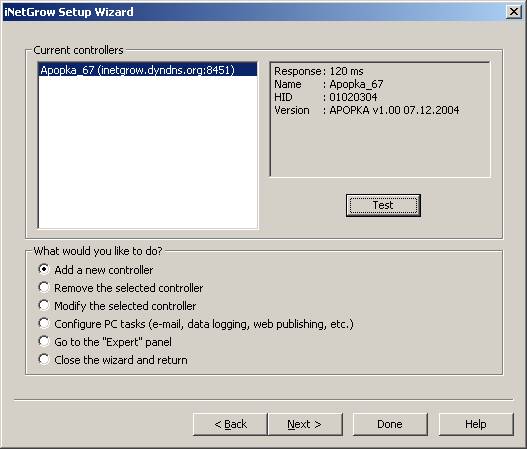
Since the controller and the modules
connected to it are already configured, the remaining steps of the setup wizard
are not needed. Click the “Done”
button to close the dialog. When
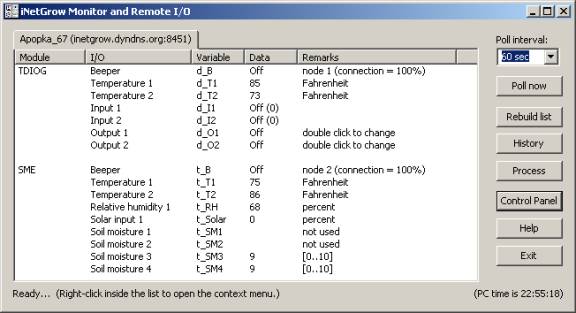
the setup wizard dialog is closed, the Monitor and Remote I/O window
opens. Here you can see the current
values of the inputs and outputs.
Since there is only one controller in our list, there is a single
tab. If you have several
controllers, information about each controller would be placed under a
different tab.
Viewing Logged Data
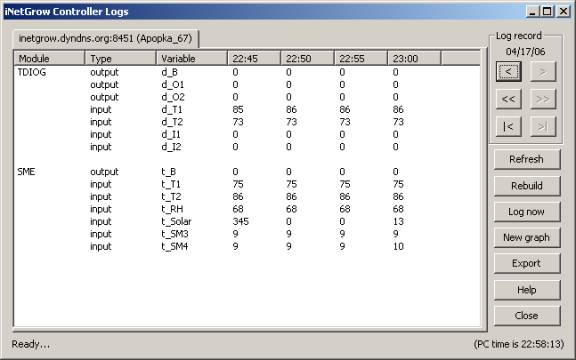
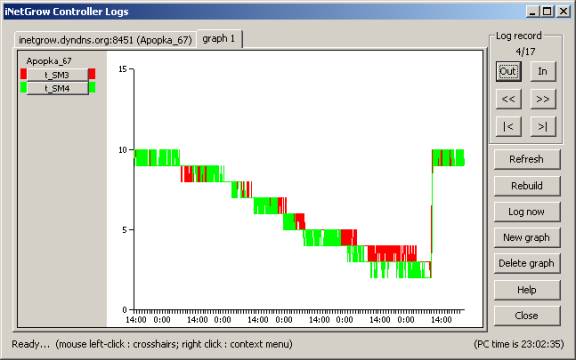
Click the “History” button to
view the data that is being logged by this controller.
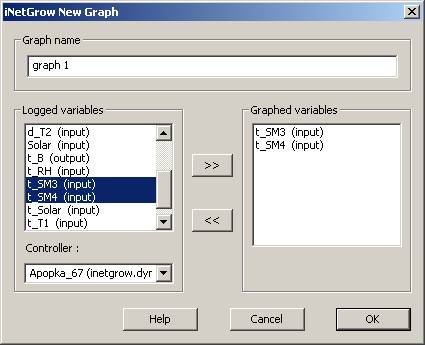
If you would like to see the
data displayed as a graph, click the “New Graph” button. Select a few variables and placed them
in the list on the right by clicking on the “>>” button. Click the “OK” button to close this
dialog.
Once the dialog is closed, the
PC asks for data from the controller.
This takes a little time.
When done, the graph is displayed.
It is recommended that you click the “Help” button at various steps to
learn more about the many features of the iNetGrow software.
Viewing Process Information
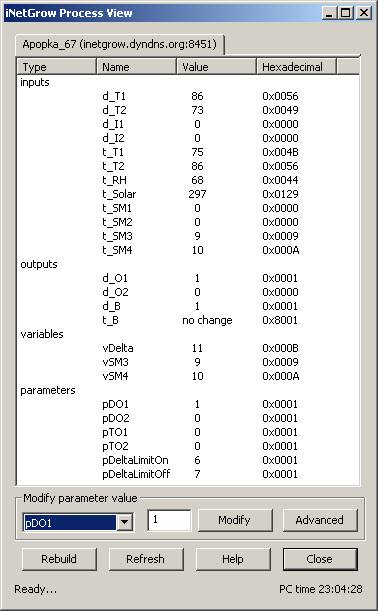
The controller is running a
script to perform automated tasks.
In the Monitor and Remote I/O dialog, click on the “Process” button to
view the current values of the variables and parameters as they are used by the
script.
Again,
click on the “Help” button to learn more about the many features of the
software.
Also see Concepts,
Architecture, Data
Logging, Programming

© Rigel Corporation iNetGrow 2003-2006. All rights reserved.